
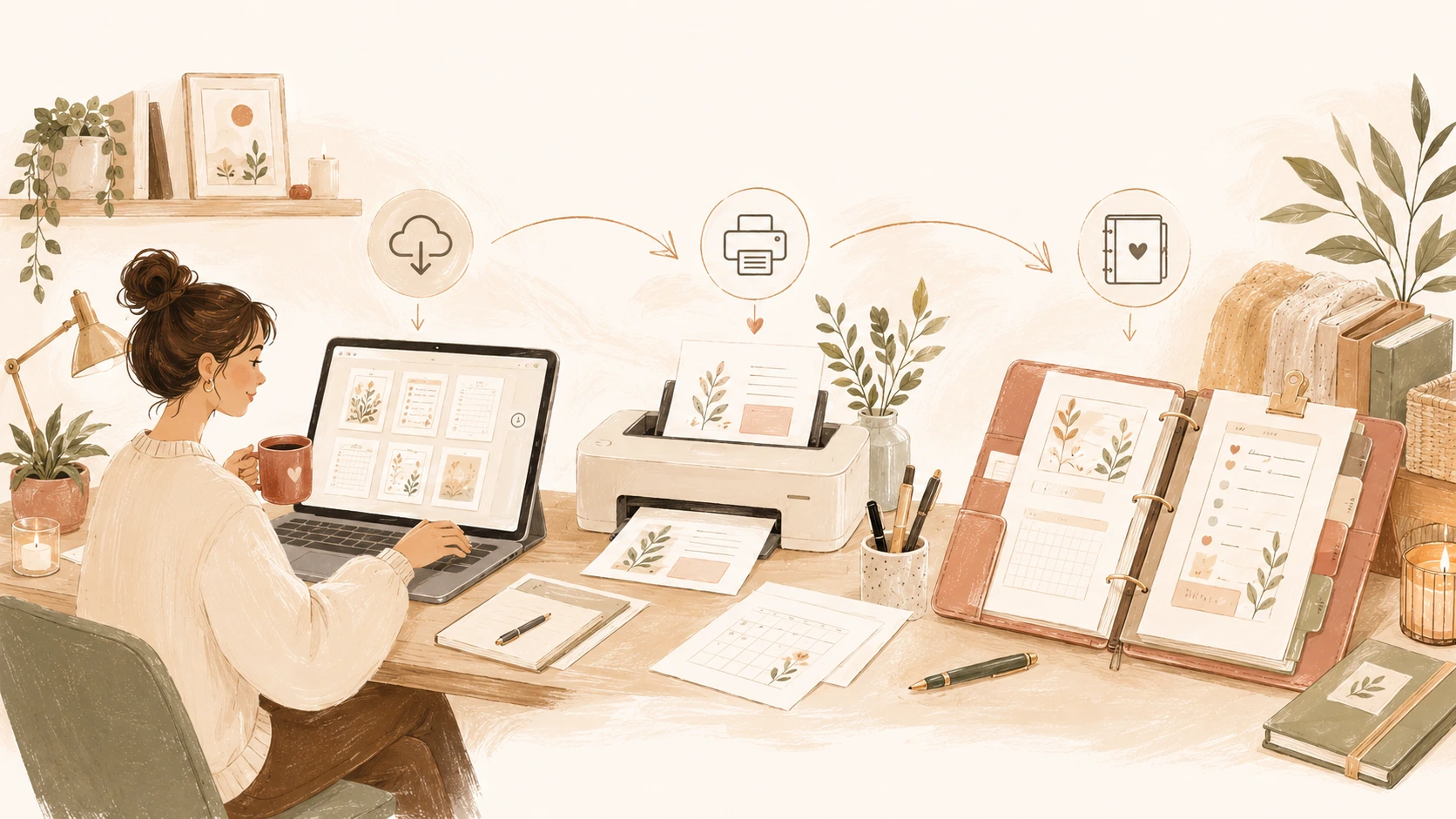
From Download to Done: How to Actually Use the Printables You Buy
Buying a printable is easy. Using it is the part that often gets lost. A planner page is downloaded, a worksheet is saved, a home binder set arrives in your inbox, and for a moment it feels like the system is ready. Then the file sits in the downloads folder, the printer settings feel confusing, or the printed pages end up in a pile with no clear place to live.
Digital downloads are most helpful when they make it all the way into your real routine. That means more than clicking “purchase.” It means saving the file somewhere you can find it, printing only what you need, storing the pages in a useful way, and actually placing them where they will be used.
The process does not need to be complicated. A simple download-to-done routine can help you turn printable pages into practical tools instead of forgotten files.
Start by saving the file somewhere sensible
The first step after buying a printable is to move it out of temporary storage. Most files land in a downloads folder, email attachment, or browser download bar. That is fine for the first few minutes, but it is not a reliable long-term home.
Create one main folder for your digital downloads. You might call it Printables, Digital Downloads, Home Planning Pages, or Printable Library. The name does not matter as much as choosing one place and using it consistently.
Inside that folder, create a few simple categories. For example, you might use folders for planners, meal planning, home organization, money, school, holidays, journals, and worksheets. Keep the categories broad at first. If you make too many tiny folders, saving the file can start to feel like work.
When you download a new printable, save it directly into the right folder or move it there right away. This one habit makes it much easier to find what you bought later.
Rename the file so you can recognize it later
Many digital downloads arrive with file names that are not very helpful. A file called “final.pdf,” “printablebundle.zip,” or “download_12345.pdf” may be fine on the day you buy it, but it will not help much three months later.
Rename the file using words you are likely to search for. A good file name might include the type of printable, the topic, the shop name, and the paper size if needed.
For example:
Weekly Planner – Sunday Reset – Letter
Meal Planner – Family Dinners – A4
Home Binder – Password Tracker
Budget Page – Money In Out
School Checklist – Morning Routine
The file name does not need to be perfect. It just needs to be clear. Use words that future you will remember, such as meal plan, gift list, packing list, password tracker, weekly planner, cleaning checklist, or journal page.
If the printable comes with multiple versions, label them clearly. Color, black-and-white, Letter, A4, half-size, and editable versions should be easy to tell apart before you print.
Read the included instructions
Some downloads include a printing guide, terms of use, page size note, or file explanation. It is tempting to skip this, but a quick look can prevent wasted ink and paper.
The instructions may tell you whether the file is designed for Letter or A4 paper, whether it should be printed at actual size, whether it includes trim marks, or whether there are multiple versions inside the folder. If the download is a zip file, the instructions may explain what each file contains.
You do not need to study every detail. Just check the basics before printing. What size is the page? Is there a black-and-white version? Are there multiple pages? Do you need to print the whole file or only certain pages?
This small step can make the difference between a page that prints cleanly and one that comes out too small, cropped, or ink-heavy.
Unzip and sort larger downloads
Many printable bundles come as zip files. A zip file is a compressed folder that needs to be opened before you can use the individual files. If you leave everything zipped, it becomes easier to forget what you actually bought.
After downloading, unzip the folder and take a quick look inside. You may find several sizes, color options, bonus pages, instructions, or separate PDFs for different sections.
Move the unzipped folder into your printable library. If the bundle is large, you can keep it together in one folder with a clear name. For example, “Home Binder Bundle” or “Seasonal Planner Bundle.” If the bundle includes many unrelated pages, you may prefer to sort the files into your existing categories.
Do not worry about organizing it perfectly. The goal is simply to make the useful files easy to find and print.
Decide what you actually need to print
One of the easiest ways to overwhelm yourself with printables is to print everything at once. A bundle may include twenty, fifty, or even one hundred pages. That does not mean all of them need to enter your routine immediately.
Before printing, ask what problem you are trying to solve right now. If mornings feel chaotic, print the routine cards or school checklist. If dinners are the problem, print the meal planner. If important information is scattered, print the home binder pages for contacts, logins, and warranties. If your thoughts feel crowded, print a brain dump page or priority list.
Treat a printable bundle like a menu, not a homework packet. Choose the pages that help this week. The rest can stay safely stored for later.
This keeps your system lighter and makes it more likely that the pages you print will actually be used.
Print one test page first
A test page can save ink, paper, and frustration. This is especially helpful if you are printing a new file, a full planner, a binder set, cards, labels, or anything with borders.
Print one page and check it before printing more. Look at the size, margins, readability, and color. Make sure the page is not cut off. Check whether the writing spaces are large enough for your handwriting. Notice whether the lines are clear and whether the design still looks good on your paper.
If the page is mainly practical, try grayscale or draft mode first. Many checklists, planners, worksheets, and binder pages work perfectly well without color. If the test page looks too faint, switch to standard quality or color for the pages where it matters.
A test page may feel like an extra step, but it often prevents reprinting a whole set.
Use the right print settings
Print settings can make digital downloads feel more confusing than they need to. A few basic choices are usually enough.
Check the paper size first. If the printable is designed for Letter paper, use Letter. If it is designed for A4, use A4. Then check the sizing option. “Actual size” is often best when the file and paper size match. “Fit to page” can help if your printer cuts off borders or if the design sits close to the edge.
Use grayscale for everyday pages when color is not necessary. Use draft mode for pages you are testing or pages that will be used quickly. Use standard or higher quality for wall art, covers, cards, or pages where crisp detail matters.
If you are printing planner inserts, check whether the file is already designed for that size or whether you need to print multiple pages per sheet. Smaller pages can save paper, but they may also reduce writing space. For pages you write on often, comfort matters.
Choose paper based on the page’s purpose
Not every printable needs special paper. Regular copy paper is usually enough for weekly planners, lists, worksheets, meal plans, budget pages, and notes.
Heavier paper can be useful for pages that will be handled often, such as routine cards, binder dividers, covers, labels, gift tags, or reference pages. Cardstock works well for cards and small reusable items. Matte presentation paper can be useful for wall art or decorative pages.
Before using premium paper, ask whether the page needs it. A grocery list does not need the same paper as a framed print. A one-time brain dump page does not need cardstock. Matching the paper to the purpose keeps printing practical.
If you plan to laminate a page, regular paper may be enough because the lamination will add sturdiness.
Store printed pages where they make sense
Printed pages are only helpful if you can find them when you need them. Once the pages are printed, give them a home right away.
A home binder works well for reference pages like emergency contacts, passwords, warranties, schedules, pet information, and household reminders. A clipboard works well for weekly pages, checklists, meal plans, and pages you update often. A folder or page protector can hold extra copies. A fridge or command center works well for family checklists, school reminders, grocery lists, and meal plans.
Try to place each printable near the action it supports. Meal planning pages belong near the kitchen or grocery list. Morning routine cards belong where the morning routine happens. Budget pages belong where you handle bills. Packing lists belong near travel supplies or important documents.
A printable hidden in a drawer may be forgotten. A printable placed where it is needed has a much better chance of being used.
Make a small “print often” folder
Some pages become regular favorites. Maybe you print the same weekly planning page every Sunday, the same meal planner each week, the same budget page each month, or the same checklist before every trip.
Create a digital folder called Print Often or Favorites. Place copies of your most-used files there. You can keep the original files in their category folders, but a favorites folder makes regular printing faster.
You can also create a physical version. Keep a few extra copies of your most-used pages in a folder, binder pocket, or planning corner. This is helpful for brain dump pages, weekly lists, meal planners, notes pages, and reset checklists.
The easier a page is to reach, the more likely you are to use it.
Use the printable in the smallest helpful way
A printable does not have to be filled out completely to be useful. You might use only the meal section of a weekly planner. You might print a budget page and only track subscriptions. You might use a home binder page just for Wi-Fi details. You might use a routine card for one child and not the whole household.
That is allowed.
The page is a tool, not a test. If one section helps and another section stays blank, the page can still be doing its job. If a checklist is only half used but prevents one forgotten item, it helped. If a brain dump page clears your head for ten minutes and then gets recycled, it served its purpose.
Using printables well often means using them lightly. Let them support the part of life that needs help instead of turning them into another obligation.
Reuse pages when it makes sense
Some printables are meant to be used once. Others can be reused again and again.
Reusable pages include routine cards, packing lists, cleaning checklists, meal idea lists, school checklists, home maintenance trackers, and reference pages. You can laminate them, place them in clear sleeves, or use a clipboard with fresh copies behind the current page.
Dry-erase markers work well on laminated pages or plastic sleeves. Wet-erase markers may be better for pages you want to update less often because they smudge less easily.
Do not laminate everything. A daily list, journal page, or brain dump page may feel better on regular paper. Reuse the pages that repeat. Reprint the pages that need a fresh start.
Review what is actually working
After using a printable for a little while, pause and notice whether it is helping. This does not need to be a formal review. Just pay attention.
Are you reaching for the page? Is it easy to fill in? Does it live in the right place? Are the sections useful? Is there enough writing space? Does the page reduce stress or add another task?
If a page is not working, the answer is not always to try harder. It may need to be moved, simplified, printed in a different size, or replaced with a different layout. Sometimes the page is useful only for a certain season and can be set aside.
A good printable system should be allowed to change. Your routine, household, schedule, and needs will not stay the same forever.
Archive or recycle what you no longer need
Printed pages can pile up if they are never cleared out. Build in a simple habit for old pages.
Weekly planning pages can be recycled unless you need to save them. Budget pages, medical notes, school information, and household records may need to be filed. Old schedules, expired checklists, and outdated reminders can be removed so they do not create confusion.
For digital files, you can create an Archive folder for downloads you do not use often but do not want to delete. This keeps your main printable library clear without forcing you to make permanent decisions.
The goal is to keep both your printed and digital systems easy to navigate.
Make buying more intentional
Once you have a download-to-done routine, it becomes easier to buy printables thoughtfully. Before purchasing another file, ask whether you know where it will be saved, how it will be printed, where it will live, and when you will use it.
This does not mean every purchase has to be serious or perfectly practical. Pretty pages, seasonal extras, and creative downloads can be enjoyable. But if you want printables to become useful, it helps to connect the purchase to a real purpose.
A printable is most valuable when it moves from idea to use. Saving, printing, storing, and placing it well are what make that happen.
A simple path from download to done
Using the printables you buy does not require a complicated system. Save the file in one clear place. Rename it so you can find it later. Read the basic instructions. Print only the pages that solve a current problem. Test one page before printing many. Store the printed pages where they will be used. Reuse what repeats, recycle what is finished, and keep your favorites easy to reach.
That is the whole path from download to done.
Digital downloads can be more than files sitting in a folder. With a few simple habits, they can become weekly pages on a clipboard, checklists near the door, meal plans in the kitchen, reference pages in a binder, and small tools that make ordinary routines feel easier to manage.