A Beginner’s Guide to Printing Digital Downloads Without Wasting Ink
Digital downloads are useful because you can print only what you need, when you need it. A weekly planner page, meal planning sheet, home binder page, checklist, journal page, or worksheet can be used right away without waiting for anything to ship. But printing at home can also feel a little uncertain at first, especially if you are trying not to waste ink, paper, or time.
A printable does not have to be expensive to use. With a few simple settings and choices, you can print digital downloads in a way that feels practical and manageable. Paper type, grayscale settings, draft mode, page sizing, lamination, and reprinting choices all make a difference.
The goal is not to become a printing expert. It is to understand the basic options so your printable pages come out clear, useful, and suited to how you plan to use them.
Start by deciding how the page will be used
Before pressing print, it helps to think about the purpose of the page. Not every printable needs the same quality, paper, or color settings.
A weekly meal planner that will be used for a few days may not need premium paper or full-color printing. A wall art print, gift tag sheet, binder cover, or page you will use often may deserve slightly better paper and a higher-quality setting. A checklist that will be laminated and reused may need to print clearly, but it does not need to use heavy color.
This small pause can save ink because it keeps you from printing everything at the highest setting. Everyday pages can usually be printed simply. Special pages can get a little more attention.
Think of your digital downloads in two groups: pages you will write on and replace often, and pages you want to keep or reuse. Most planner pages, notes pages, budget sheets, routine pages, and school checklists belong in the first group. Binder covers, reference pages, wall art, and reusable checklists may belong in the second.
Choose the right paper for the job
Regular printer paper is enough for many digital downloads. Standard copy paper works well for weekly planners, to-do lists, meal plans, notes pages, and worksheets that will be used once or for a short period of time. It is affordable, easy to find, and practical for everyday printing.
For pages that need to feel a little sturdier, consider a heavier paper. A slightly thicker paper can be helpful for binder dividers, planner covers, routine cards, reference pages, or pages that will be handled often. Cardstock works well for flashcards, labels, recipe cards, gift tags, and anything that needs to hold its shape.
For wall art or decorative pages, matte presentation paper or a heavier bright white paper can give a cleaner result than basic copy paper. Glossy paper may work for some designs, but it can be harder to write on and may show fingerprints. For most printable planners and home organization pages, matte paper is usually more useful.
The best paper is not always the most expensive one. It is the one that matches the page. If you are printing a grocery list, simple paper is fine. If you are printing routine cards for a child to use every school day, a heavier paper or lamination may make more sense.
Use grayscale when color is not necessary
Color printing can use ink quickly, especially on pages with large decorative areas, full-color backgrounds, or many images. If the page is mainly functional, grayscale printing is often enough.
Grayscale means the printer uses shades of gray instead of color. This can work well for checklists, planners, worksheets, budget pages, notes pages, and many home binder pages. Even if the printable was designed in color, it may still be easy to read in grayscale if the contrast is clear.
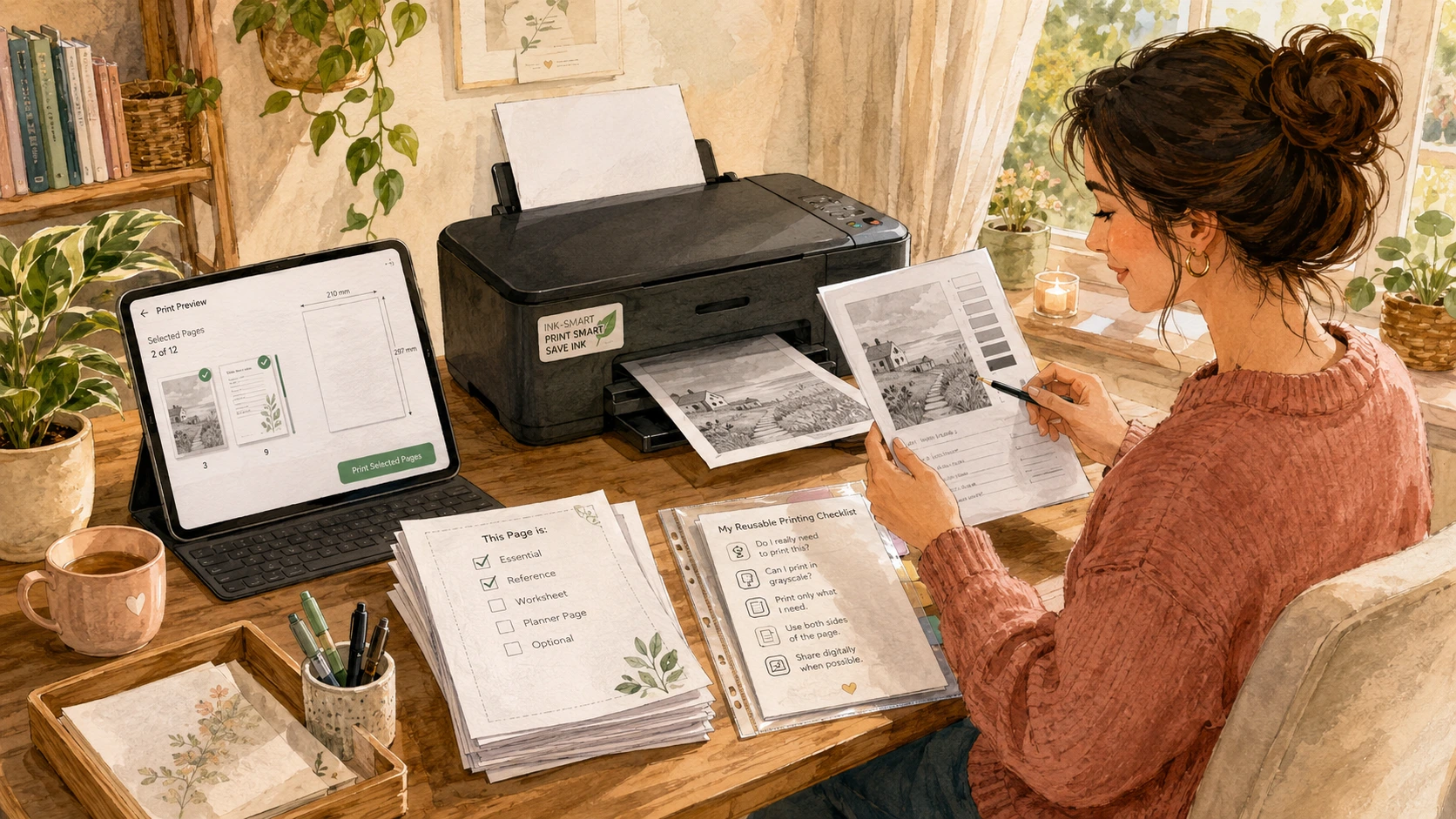
Before printing a full set, test one page in grayscale. Check whether the headings, lines, boxes, and text are still readable. Some soft pastel designs may print too faintly in grayscale, while clean black-and-white designs usually print very well.
If you like the look of color but want to save ink, use color only for pages where it matters most. For example, you might print a binder cover in color but print the weekly planning pages inside in grayscale. This gives the binder a nice look without using color ink on every page.
Try draft mode for everyday pages
Most printers offer a setting called draft mode, economy mode, or fast printing. This setting uses less ink and prints more quickly. It is useful for pages that do not need to look perfect.
Draft mode can work well for rough planning pages, brain dumps, simple checklists, school practice sheets, notes pages, and pages you plan to use once. If you are testing a printable layout for the first time, draft mode is a good choice. You can see whether the page works for you before using more ink.
The tradeoff is that draft mode may print lighter. Fine lines, pale text, or detailed graphics may not look as crisp. For pages with small writing, light gray lines, or decorative elements you want to see clearly, standard quality may be better.
A helpful habit is to print one test page in draft mode before printing several copies. If it is readable and useful, continue. If it looks too faint, switch to standard quality.
Check page sizing before printing
Page sizing is one of the most common printing issues with digital downloads. A page may print too small, too large, cut off at the edges, or slightly blurry if the settings are not right.
Most printable pages are designed for a specific paper size, such as Letter or A4. Before printing, check the file description or page size. Then make sure your printer settings match the paper you are using.
Look for settings such as “actual size,” “fit to page,” “scale,” or “shrink oversized pages.” For planner pages, forms, worksheets, and binder pages, “actual size” often gives the most accurate result if the file matches your paper. “Fit to page” can be helpful if the design is close to the edge or if your printer cuts off margins.
If the printable includes borders, check the print preview carefully. Some home printers cannot print all the way to the edge of the paper. This means a border may be cut off unless you choose a fit setting or print on a printer that supports borderless printing.
For half-size planner pages, make sure you understand whether the file is already designed as half-size or whether you need to print two pages per sheet. Printing two pages per sheet can save paper, but it may make writing areas smaller. This is useful for reference pages or small inserts, but not always ideal for pages that need lots of handwriting space.
Print a test page first
Printing one test page can prevent a lot of wasted ink and paper. This is especially helpful if you are printing a full planner, a set of binder pages, routine cards, labels, or anything with many pages.
A test page lets you check size, color, readability, margins, and paper choice. It also helps you catch printer settings that may have carried over from a previous project.
When checking the test page, ask a few practical questions. Is the text easy to read? Are the writing spaces large enough? Are any edges cut off? Does the paper feel right for the purpose? Is color necessary, or would grayscale work? Is draft mode clear enough?
If something looks wrong, adjust before printing the rest. This small step is one of the easiest ways to avoid waste.
Use ink-friendly designs when possible
Some digital downloads are naturally more ink-friendly than others. Pages with white backgrounds, simple lines, clean headings, and minimal decoration usually use less ink. Pages with dark backgrounds, large colored blocks, heavy patterns, or full-page illustrations use more.
When choosing printables for everyday use, look for designs that leave plenty of white space. This is not only better for ink. It is often better for writing, too. A clean weekly planner with simple sections may be easier to use than a heavily decorated page with small boxes.
For pages you plan to print often, such as daily lists, meal planners, budget trackers, school checklists, and cleaning routines, ink-friendly design matters more. For pages you print once, such as a binder cover or wall art, you may be more willing to use extra ink.
A practical printable should balance beauty with function. If a page is meant to be used every week, it should not require a large amount of ink every time.
Laminate pages you use again and again
Lamination can reduce reprinting because it turns certain pages into reusable tools. You can write on laminated pages with a dry-erase marker or wet-erase marker, wipe them clean, and use them again.
This works well for routine cards, chore charts, morning checklists, meal idea lists, cleaning checklists, habit trackers, packing lists, and reference pages that stay mostly the same. You can also place a printed page inside a clear plastic sleeve instead of using a laminator. This is an easy option if you do not want to buy extra supplies.
Lamination is not necessary for every printable. It is best for pages that repeat. A daily brain dump page may not need to be laminated because you may want to keep or toss each page after writing. A weekly planner can be laminated if the structure stays the same, but some people prefer fresh paper because it feels easier to write on and save.
Before laminating, make sure the page is one you truly expect to reuse. Lamination saves paper when the page becomes part of a repeated routine. It is less useful if the page will only be used once.
Reprint only the pages you need
One of the best parts of digital downloads is that you do not have to print the entire file every time. If a planner includes many sections, you can print only the pages that fit your current routine.
Maybe you only need the weekly overview and meal planner. Maybe you want the budget page this month but not the habit tracker. Maybe you need one fresh school checklist and three copies of a daily list. Printing selectively keeps the system lighter and helps avoid stacks of unused pages.
Most PDF viewers allow you to choose specific pages. Look for a “pages” box in the print settings where you can enter page numbers or ranges. For example, you might print only page 4, or pages 6 to 8. If you are unsure which page number you need, scroll through the PDF first and note the correct page.
This is especially helpful with printable bundles. A large bundle can be useful, but only if you treat it like a menu, not an assignment. Print what solves the problem in front of you.
Save your favorite settings
Once you find settings that work well, make a note of them. This can be as simple as writing down “weekly planner: grayscale, standard, actual size” or “routine cards: cardstock, color, high quality, laminate.”
You might keep this note in your home binder, planner folder, or digital files. It saves time the next time you print the same type of page.
This is helpful because printer settings can be easy to forget. You may use draft mode for one project, then accidentally print a decorative page too lightly. Or you may use high quality for wall art, then forget to switch back before printing a stack of everyday lists.
A small printing notes page can prevent those mistakes and make digital downloads easier to use.
Store printed pages neatly
Printing only saves time if the pages are easy to find afterward. Keep unused printed pages in a folder, binder pocket, tray, or labeled envelope. You might sort them by category, such as weekly planning, meals, money, school, routines, notes, and home binder pages.
This prevents the common problem of printing a page, misplacing it, then printing it again because you cannot find it. A simple storage spot helps you use what you already have.
If you use certain pages often, keep a small stack ready. For example, you might keep weekly planning pages in a folder near your planning corner, lunch planners in a kitchen binder, and routine cards near the morning station. The easier the pages are to reach, the more likely they are to be used.
A simple approach to printing well
Printing digital downloads does not need to be complicated. Start by choosing the right paper for the job. Use grayscale when color is not needed. Try draft mode for everyday pages. Check page sizing before printing a full set. Print one test page first. Laminate pages that repeat, and reprint only what you actually use.
These small choices help digital printables stay practical. They can save ink, reduce paper waste, and make each page better suited to its purpose.
A printable should make life a little easier, not create a new source of frustration. With a few thoughtful printing habits, your digital downloads can become simple, useful pages that are ready when you need them.